WE MAKE T-SHIRTS โ€ข FREE CUSTOMER GUIDE

Design with AI.
Print it like a pro.

Use AI to create custom T-shirt artwork that looks incredible on the shirtโ€”not just on a screen. Learn the tricks that help DTF prints look cleaner, feel better, and avoid giant, heavy-looking patches.

โœ“ Beginner friendly โœ“ Copy-and-paste AI prompts โœ“ DTF printing tips
01 / The big difference

Not every great graphic makes a great shirt print.

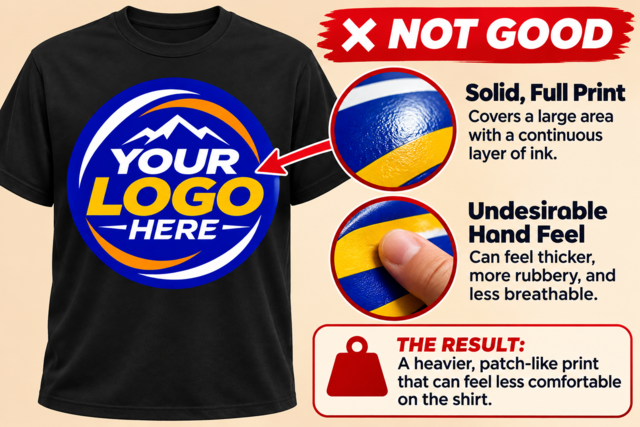
DTF printing can reproduce colorful, detailed designs. But large, uninterrupted blocks of ink can feel heavier and less flexible than prints that allow the shirt fabric to show through. Here's an example using the same design.

โœ• NOT GOOD โ€” Solid Patch-Style Design
Example of an undesirable DTF design with a large solid print area, heavier hand feel, and reduced breathability

The heavy patch look

The large solid royal blue circle creates one continuous area of printed ink. This can produce a heavier, more rubbery hand feel and reduce breathability in the printed area.
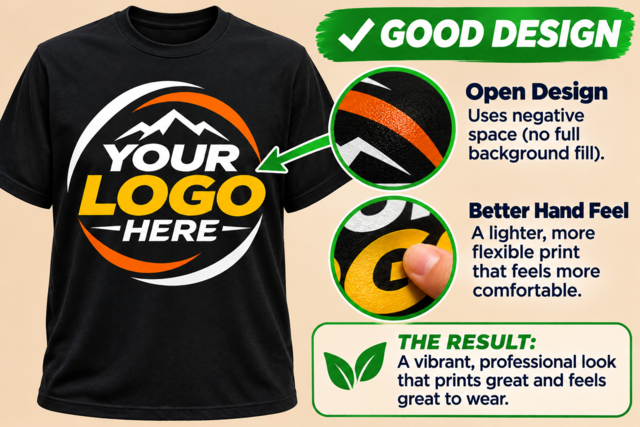
โœ“ GOOD โ€” Negative Space Design
Example of a better DTF design using negative space, with the shirt fabric showing through the artwork

Let the shirt show through

By removing the solid blue background, the shirt fabric becomes part of the design. This reduces unnecessary ink coverage and can result in a lighter, more flexible print with better hand feel.

The takeaway: The same logo can produce two very different printing experiences. Whenever possible, use negative space, open areas, and strategic design elements instead of filling the entire print area with solid ink.

Remember: Solid colors are perfectly fine. The goal is to avoid unnecessarily large, continuous areas of ink.
02 / Design smarter

6 ways to create better DTF artwork.

Whether you're designing for your business, school, racing team, band, or organization, these simple techniques can make a big difference.

01

Avoid solid backgrounds

Don't place your entire design inside a giant rectangle unless that's intentionally the look you want. Let the shirt color become part of the design.

02

Use negative space

Negative space means intentionally leaving areas unprinted. This can make your design feel lighter while giving your artwork more visual impact.

03

Try distressed textures

Vintage, weathered, and distressed effects can break up larger areas of ink. Make sure distressed details are large enough to reproduce cleanly.

04

Use halftones

Halftones create shading using individual dots instead of soft transparent fading. Properly sized halftones can create detailed artwork without large continuous solid areas.

05

Keep edges clean

Avoid fuzzy outlines, unwanted background shadows, and feathered transparency. Clean edges usually make artwork easier to prepare for DTF production.

06

Design for shirt color

A graphic created for a black shirt may not work on a white one. Tell AI exactly what garment color you'll use so it can choose appropriate contrast and colors.

03 / Your creative process

How to design your T-shirt with AI.

You can start with ChatGPT or another image-generating tool. You don't need professional design software to explore ideas.

Describe the design

Tell AI the business or theme, the colors, the style, the shirt color, and the exact words you want. Example: "Vintage landscaping company design, cream and green, for a black shirt."

Ask for a T-shirt graphic

Say "isolated graphic, not a photo of a shirt, no mockup, no solid rectangular background." Ask for open negative space and clean, defined edges.

Refine the print-friendly details

Ask AI to break up large solid fills, remove background scenery, simplify tiny details, and replace unwanted soft transparent fades with printable halftone-style dots.

Inspect, export, and upload

Check spelling and transparency. Export the largest clean, high-resolution PNG available, ideally with a truly transparent background. Then upload it to your shirt order.

WATCH & LEARN

See what makes a great T-shirt design.

A design can look amazing on your screen but print completely differently on a shirt. Watch this quick video to learn what makes artwork more DTF-friendly.

โœ“ Avoid heavy, solid patch-style prints
โœ“ Make better use of negative space
โœ“ Create artwork that looks great on fabric
04 / Ready to create?

Copy these AI design prompts.

Replace the words in [brackets] with your business, colors, or ideas. Use these prompts to generate artworkโ€”not a shirt mockup.

Small business

Bold business logo graphic

Create an original T-shirt graphic for a [TYPE OF BUSINESS] called [BUSINESS NAME]. Use [COLORS] in a bold, clean, professional style. Include [EXACT WORDING]. Make it an isolated graphic with crisp edges, readable lettering, intentional negative space, and no solid rectangular background. Avoid broad solid color fills where possible. No shirt mockup, no scenery, no watermark. Transparent background if supported. Make all visible elements suitable for DTF printing.

Vintage / Distressed

Classic worn-in graphic

Create an original vintage-inspired T-shirt design featuring [SUBJECT] for [BUSINESS OR BRAND]. Use [COLORS] and a bold, retro illustration style. Include [EXACT WORDING]. Add tasteful distressed texture and open negative space to break up large solid areas. Keep distressed gaps large enough to print cleanly. No full rectangular background, no shirt mockup, no soft transparent glows. Isolated artwork with crisp edges and transparent background if supported.

Racing / Motorsports

High-energy racing art

Create an original high-energy motorsports T-shirt graphic featuring [TYPE OF RACE VEHICLE] with [TEAM NAME]. Use [COLORS] on a [SHIRT COLOR] shirt. Add dynamic speed lines and bold outlines with open spaces between major shapes. Use well-defined halftone dots instead of soft transparency fades. Keep small details thick and printable. No background rectangle, no shirt mockup, no watermark. Isolated DTF-friendly graphic. Spell [EXACT WORDING] exactly.

Fix an existing AI design

Make this more print-friendly

Keep the main subject, wording, composition, and overall look of this artwork. Prepare a new version designed for DTF printing on a [SHIRT COLOR] shirt. Remove the solid rectangular background and unnecessary large filled areas. Replace soft transparent fades with clean edges or printable halftone dots. Add intentional negative space while preserving the design's identity. Avoid tiny isolated dots, very thin lines, and feathered transparency. Output isolated artwork, not a mockup, with a transparent background if supported. Do not change or invent any lettering.

AI may not follow every instruction. It can also generate a checkerboard that looks transparent but isn't. Always inspect the actual exported file.

05 / Before you order

Your artwork upload checklist.

A few quick checks now can prevent disappointing print results later.

โœ“
Use a truly transparent background.

No accidental white or colored rectangle behind the art.

โœ“
Use a high-resolution file.

Aim for 300 DPI at actual print size, not just a "300 DPI" label.

โœ“
Export as PNG when possible.

PNG can preserve true transparency; a JPG cannot.

โœ“
Check every letter and number.

AI-generated text can look correct at a glance and still be wrong.

โœ“
Avoid fuzzy or semi-transparent edges.

Use clean edges or properly prepared halftone effects instead.

โœ“
Don't make details microscopic.

Keep small lettering, outlines, and halftone dots large enough to print.

โœ“
Preview on your chosen shirt color.

Dark colors can disappear on dark garments; contrast matters.

โœ“
Upload the design, not a product mockup.

Send the actual artwork file whenever possible.

Important: Your uploaded artwork is your responsibility. AI images sometimes contain spelling mistakes, unwanted backgrounds, and details that aren't obvious on a phone. Inspect your file carefully before ordering. The design you upload determines what gets printed; do not assume your artwork will automatically be redesigned or corrected.
06 / Common questions

Quick answers about AI art and DTF.

Can I use an image I generated with ChatGPT?

Yes, you can use AI-generated artwork for your custom shirt order, provided you have the rights to use it. For best results, upload the actual artworkโ€”not a screenshot of a shirt or an AI mockup.

Will you remove my background automatically?

Do not count on automatic background removal or redesign. Submit your artwork with a true transparent background whenever you want the shirt itself to show around the design. If a background remains, it may be printed.

Are solid colors bad for DTF?

No. Solid logos, text, and shapes can print very well. The issue is unnecessary large continuous areas of ink, which can feel heavier than designs with open space.

Can I use gradients or faded artwork?

Color gradients within opaque shapes can work, but soft fades into transparency, glows, and feathered shadows may cause halos or unexpected edges. Properly sized halftone patterns are often a better way to achieve a faded look.

Can AI make a transparent PNG?

Some AI tools support transparent images; others create a white background or fake checkerboard. Open the exported file on both a light and dark background to check.

What size should my artwork be?

For full-back or large front prints, plan around a maximum of approximately 11 inches wide by 14 inches tall. For left-chest prints, approximately 4 inches by 4 inches is a useful planning guide. Actual maximums depend on the product and order configuration.

Will the print look exactly like the AI image?

Not always. Screen colors, garment color, ink, transfer texture, and tiny details can change the appearance of the finished print. Your monitor is a preview, not a guarantee of exact color or feel.

READY WHEN YOU ARE

Got your design? Let's print it.

Turn your AI idea into custom apparel. Upload your artwork, choose your shirts, and get your order started online.

We Make T-Shirts โ€ข Custom apparel shipped nationwide
Search
Search

Select Currency

{CC} - {CN}